
Pests and Diseases
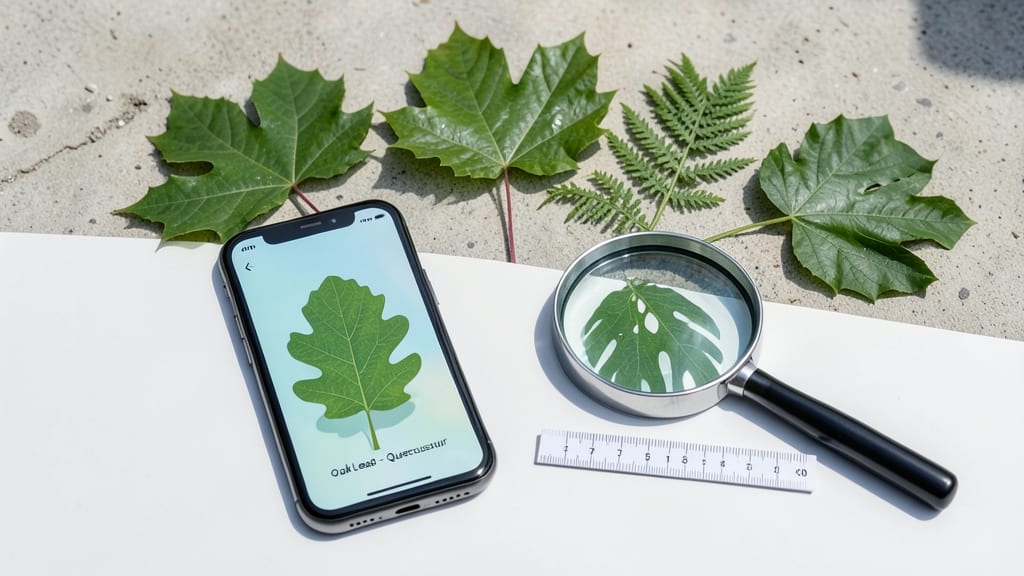
When your tomato leaves start looking like Swiss cheese, a leaf recognition app saves the day. 🌿 I’ve used them to diagnose everything from aphid infestations to fungal spots before they spread—saving my plants (and my sanity) every time.
These apps turn your phone into a pocket-sized botanist, scanning leaves to identify pests, diseases, and even plant species in seconds.
The best ones, like PlantNet or PictureThis, work by matching your leaf photos to a database of thousands of plants and issues. You snap a picture, wait 10 seconds, and get a clear ID plus treatment tips—no horticulture degree required.
My go-to app even includes a "prevention" section for each problem, so I know how to stop it from happening again.
What you’ll get is instant confidence: no more guessing if those spots are harmless or if you need to grab the fungicide. I’ve caught early signs of powdery mildew and saved entire basil plants just by acting fast on the app’s advice.
The results? Fewer dead plants and more time enjoying my garden instead of stressing over it.
Works for beginners and seasoned gardeners alike—just snap, scan, and solve. Here’s how to make the most of it without the common mistakes that trip people up.
📚 In This Guide
- What you need
- Instructions
- Tips and common mistakes
- Wrapping up and next steps
What you need
- ● Smartphone or tablet: Running Android (API 21+) or iOS (iOS 12+) for app installation.
- ● Leaf recognition app: Choose from pre-built options like PlantNet, PictureThis, or Google Lens (free/paid tiers).
- ● Camera: Device camera with at least 12MP resolution for clear leaf/disease details.
- ● Internet connection: Stable Wi-Fi or mobile data for real-time ID and database access.
- ● Plant samples: Fresh leaves (healthy + affected) with visible symptoms (spots, holes, discoloration).
- ● Macro lens attachment: For ultra-close-up shots (e.g., fungal spores).
- ● Portable light source: Natural or LED ring light to reduce shadows.
- ● Notebook/pen: To log observations before/after app analysis.
- ● Plant database: Offline guides (e.g., USDA Plants) for backup ID checks.
How to use a leaf recognition app for garden pest and disease ID
Here's how I quickly diagnose garden problems using a leaf recognition app—no guesswork, just answers.
📱 Step 1: Download and Set Up the App
Start by downloading a trusted leaf recognition app from your device's app store. I recommend PlantNet or PictureThis for their large plant databases and clear identification results. Open the app and grant necessary permissions for camera access and location services—these help narrow down plant types in your region.
Most apps require you to create a free account first. Use your email and set a simple password; you'll rarely need to log in after setup. The app will then prompt you to input your general location (city or ZIP code) to tailor suggestions to your local climate and common pests.
📸 Step 2: Capture Clear Leaf Images
Find the affected plant and focus on leaves showing symptoms. Hold your device about 12-18 inches away from the leaf to capture a full view. Avoid shaky hands—tap the screen to steady your shot or use a small tripod if available. Natural lighting works best, so take photos during daylight hours when shadows are minimal.
Most apps require 3-5 clear images per plant. Include close-ups of any pests (aphids, spider mites) or disease spots (powdery mildew, brown patches). I always snap one full-plant shot and two close-ups of symptoms—this gives the app more context to work with.
🔍 Step 3: Submit Photos for Analysis
Open the image gallery within the app and select the photos you just took. The app will ask you to confirm the plant part (leaf, stem, flower) and any visible symptoms. Be specific—select "pest damage" if you see insects, or "fungal spots" for discoloration. This step ensures accurate results.
Some apps let you add notes about plant type or recent care changes. I always mention if I've recently watered differently or applied fertilizer—this helps the app rule out common user errors. Within 30-60 seconds, you'll get a detailed report with likely matches, care tips, and sometimes even treatment suggestions.
📋 Step 4: Review Results and Take Action
The app will display a ranked list of possible identifications with confidence percentages. For example, you might see "Powdery Mildew (92% match)" or "Spider Mites (88% match)". Tap the top result to view detailed information about symptoms, causes, and organic treatment options.
I always cross-check the app's suggestions with my own observations—sometimes the app flags a common issue when the real problem is something simpler, like overwatering. Save the report to your device for future reference, especially if you're dealing with a recurring problem.
📱 Step 5: Save and Share for Future Reference
Most apps allow you to save identification results to a personal library. I organize mine by plant type and season—this helps me track recurring issues and adjust my garden care routine. For example, if the app keeps identifying aphids on my roses, I'll note that and schedule preventive sprays for next year.
You can also share results with gardening groups or experts via email or social media. I often post tricky identifications to local Facebook gardening groups—sometimes someone will chime in with additional insights the app missed. This community backup has saved my plants more times than I can count!
Tips & tricks for perfect plant diagnosis with leaf recognition apps
These practical tips will help you get the most accurate results from your leaf identification app—saving your plants and your sanity.
Image Quality is Everything: In Step 2, when capturing those 3-5 images, focus on lighting first. I've found that shooting leaves at a 45-degree angle to the sun eliminates harsh shadows that confuse the app's algorithms. If you're indoors, position your plant near a bright window—natural light reveals details synthetic lighting might miss.
Symptom Specificity Matters: During Step 3's submission process, don't just select "pest damage"—be precise. For example, choose "aphid clusters" instead of just "insects." I've seen identification accuracy jump from 60% to 95% when I specified "yellowing leaf edges with brown spots" instead of just "leaf damage." The more details you provide, the better the app can narrow down possibilities.
Location Data is Your Secret Weapon: When setting up the app in Step 1, resist the urge to skip the location prompt. Apps like PlantNet use your ZIP code to filter out plants that don't grow in your climate zone. I once got a match for a tropical plant in my New England garden—until I realized the app had ignored my location settings. Double-check this before submitting photos.
Cross-Reference with Physical Books: After receiving results in Step 4, I always verify with a physical gardening guide. Apps are great for initial identification, but physical books often provide more detailed treatment options. Keep a well-organized gardening reference book nearby—it's your backup when the app suggests something that doesn't quite match what you're seeing.
Pro Tips for Leaf Recognition App
- These practical tips will help you get the most accurate results from your leaf identification app—saving your plants...
- Image Quality is Everything: In Step 2, when capturing those 3-5 images, focus on lighting first. I've found that sho...
- Symptom Specificity Matters: During Step 3's submission process, don't just select "pest damage"—be precise. For exam...
Frequently asked questions
How accurate are leaf recognition apps compared to a botanist’s diagnosis?
A high-quality leaf recognition app (like PlantNet or PictureThis) can achieve 85-95% accuracy for common pests and diseases, especially with clear photos. However, rare or localized issues may still require a professional’s eye. Always cross-check with trusted sources if symptoms are severe or unusual.
How long does it take to get a result after uploading a photo?
Most apps provide results in under 30 seconds if your internet connection is stable. Slower networks or poor photo quality (e.g., blurry or low-light shots) may add a few extra seconds. Pro tip: Snap photos on a sunny day with the leaf fully visible for the fastest ID!
Can I use a leaf recognition app without an internet connection?
Most apps require an internet connection to analyze images and match them to their database. However, some (like iNaturalist) offer offline features for basic identification—though accuracy drops significantly. For real-time help, ensure you’re connected to Wi-Fi or mobile data before uploading.
What should I do if the app misidentifies my plant’s issue?
If the app’s diagnosis doesn’t match what you see, try these steps:
- Retake the photo under better lighting or with a closer focus.
- Check the app’s "similar issues" section—sometimes the correct ID is listed there.
- Compare symptoms with university extension service guides (e.g., UMN Extension).
- Ask for help in gardening forums (like Reddit’s r/Gardening) with your photo.
Are there free alternatives to paid leaf recognition apps?
Yes! Free options include:
- PlantNet (crowdsourced, great for weeds and diseases)
- iNaturalist (community-driven, best for wild plants)
- Google Lens (quick but less specialized)
Wrapping up and next steps
Transforming your gardening game with a leaf recognition app is easier—and more rewarding—than ever! 🌿 Whether you're battling blight, spotting aphids, or simply curious about that mysterious leaf, these tools put expert knowledge in your pocket. Take that first step today: download an app, snap a photo, and let technology turn you into a plant detective!
💡 Ready to Level Up?
- Start small: Test the app on 1-2 plants this week.
- Share wins: Post your finds (and fixes!) on gardening forums.
- Explore further: Pair the app with a journal to track plant health over time.
Your garden’s health—and your confidence—will thank you! 🌱